
Yo, what's up guys? I'm an all - around dude in the world of Siemens PLCs, and I work as a Siemens PLC supplier. Today, I'm gonna walk you through the ins and outs of installing and using Siemens PLC programming software. It can seem a bit like a maze at first, but stick with me, and you'll get the hang of it.
Choosing the Right Programming Software
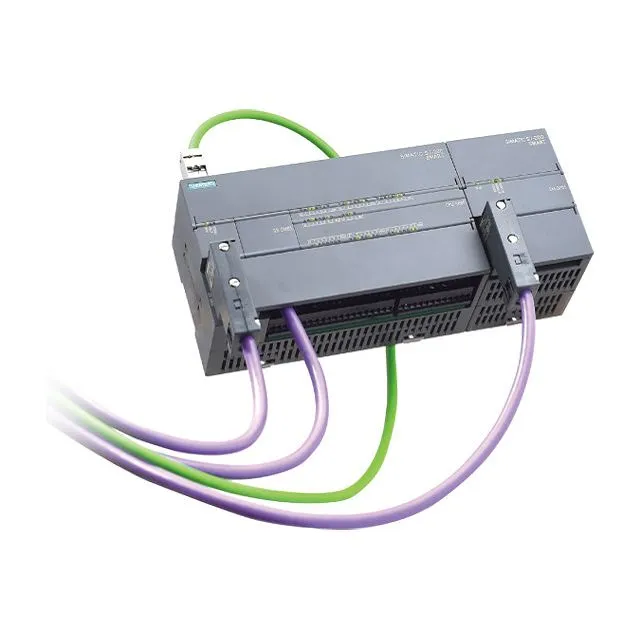
First things first, Siemens has different programming software depending on the PLC model you're using. For smaller projects and basic automation tasks, Siemens PLC S7 200 is a popular choice. You can check out more details about it here. The software for Siemens PLC S7 200 is STEP 7 - Micro/WIN. It's user - friendly and great for beginners who are just starting to dip their toes into the world of PLC programming.
If you're dealing with medium - sized applications, Siemens PLC S7 1200 might be your go - to. You can find more info on it here. The programming software for S7 1200 is TIA Portal (Totally Integrated Automation). It's a more comprehensive platform that offers a wide range of features for automation projects.
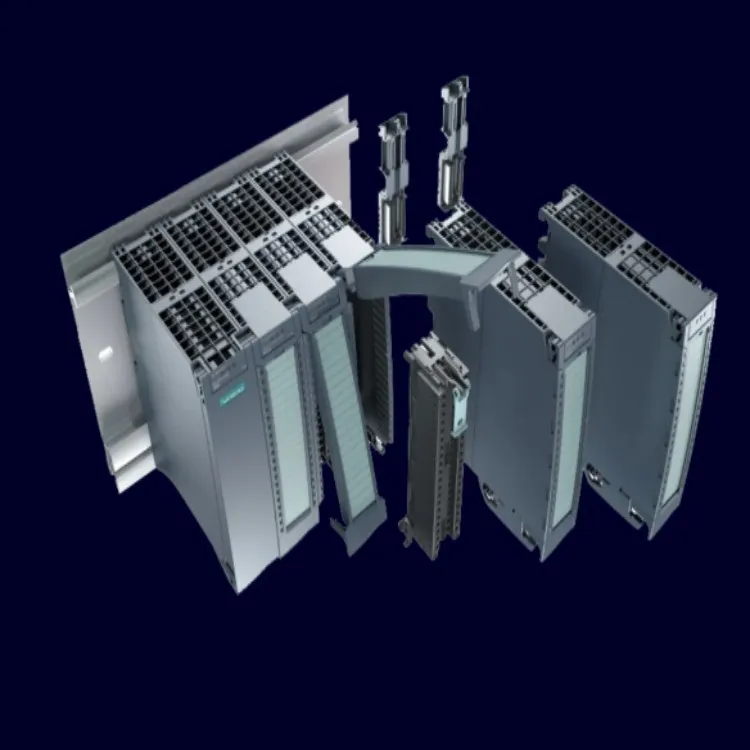
For large - scale industrial applications, Siemens PLC S7 1500 is the powerhouse. You can learn more about it here. And guess what? It also uses the TIA Portal software. This software is super powerful and can handle complex automation tasks with ease.
Installing the Programming Software
Let's start with the installation process. I'll use TIA Portal as an example since it's used for both S7 1200 and S7 1500, and it's one of the most widely used software in Siemens PLC programming.
Step 1: Check System Requirements
Before you start installing, make sure your computer meets the system requirements. You need a certain amount of RAM, hard - disk space, and a compatible operating system. To avoid any headaches later on, double - check these specs on the official Siemens website.
Step 2: Download the Software
Once you've confirmed that your computer can handle the software, head over to the Siemens website or your authorized reseller's website. There, you'll find the download link for TIA Portal. It might take a while to download, depending on your internet speed, so grab a coffee or do something else while you wait.
Step 3: Run the Installation Wizard
After the download is complete, locate the installation file and run it. Follow the on - screen instructions. You'll be asked to accept the license agreement, choose the installation location, and select the components you want to install. If you're not sure which components to pick, just go with the default settings, and you'll be good.
Step 4: Activation
Once the installation is finished, you'll need to activate the software. You'll usually get an activation key when you purchase the software. Enter this key in the activation window, and you're all set.
Using the Programming Software
Now that you've got the software installed, let's talk about how to use it.
Step 1: Create a New Project
Open TIA Portal and click on "Create a new project." Give your project a name and choose a location to save it. This is where you'll build your entire automation system.
Step 2: Configure the PLC
In the project view, right - click on the "Devices" folder and select "Add new device." Choose the appropriate PLC model (S7 1200 or S7 1500, for example). Then, you'll need to configure the hardware. This includes setting up the communication interfaces, CPU properties, and memory parameters.
Step 3: Program the PLC
This is the fun part! There are different programming languages you can use in TIA Portal, like Ladder Diagram (LD), Structured Text (ST), and Function Block Diagram (FBD). Each language has its own strengths. For example, Ladder Diagram is easy to understand and is similar to electrical circuit diagrams, making it a favorite among electricians.
To create a new program, right - click on the "Program blocks" folder and select "Add new block." Choose the programming language you want to use and start writing your code. You can use built - in functions and instructions to perform tasks like reading input signals, controlling output devices, and implementing logical operations.
Step 4: Testing and Debugging
Once you've written your program, it's time to test it. You can simulate the program in TIA Portal to see if it works as expected. If there are any errors, the software will highlight them, and you can go back and fix them. Debugging is an important part of the programming process, so don't rush it.
Step 5: Downloading the Program to the PLC
After you're satisfied with the test results, it's time to download the program to the actual PLC. Connect your computer to the PLC using an appropriate communication cable. Then, in TIA Portal, click on the "Download" button. The program will be transferred to the PLC, and it will start running.
Troubleshooting
Even if you follow all the steps correctly, you might run into some issues. Here are some common problems and how to fix them:
- Installation Errors: If you get an error during installation, make sure your computer meets the system requirements. You can also try running the installation file as an administrator.
- Communication Errors: If you can't connect to the PLC, check your communication settings. Make sure the cable is properly connected, and the IP address of the PLC and your computer are in the same subnet.
- Programming Errors: If your program doesn't work as expected, double - check your code for syntax errors. You can also use the debugging tools in TIA Portal to find and fix the problem.
Why Choose Us as Your Siemens PLC Supplier
As a Siemens PLC supplier, we've got your back. We offer high - quality Siemens PLCs at competitive prices. Our team of experts is always ready to help you with any questions you might have, whether it's about installation, programming, or troubleshooting. We also provide fast and reliable delivery, so you can get your hands on the products you need as soon as possible.
If you're interested in purchasing Siemens PLCs or need more information about our products and services, don't hesitate to reach out. We're here to make your automation projects a success.
References
- Siemens official documentation
- TIA Portal user manuals
- Programming guides for Siemens PLC models